Bring your course files straight into Clevaly.
Connect Moodle, Canvas, or Brightspace to bring course files and deadlines into your classes. Turn imported readings into notes, flashcards, and practice tests.
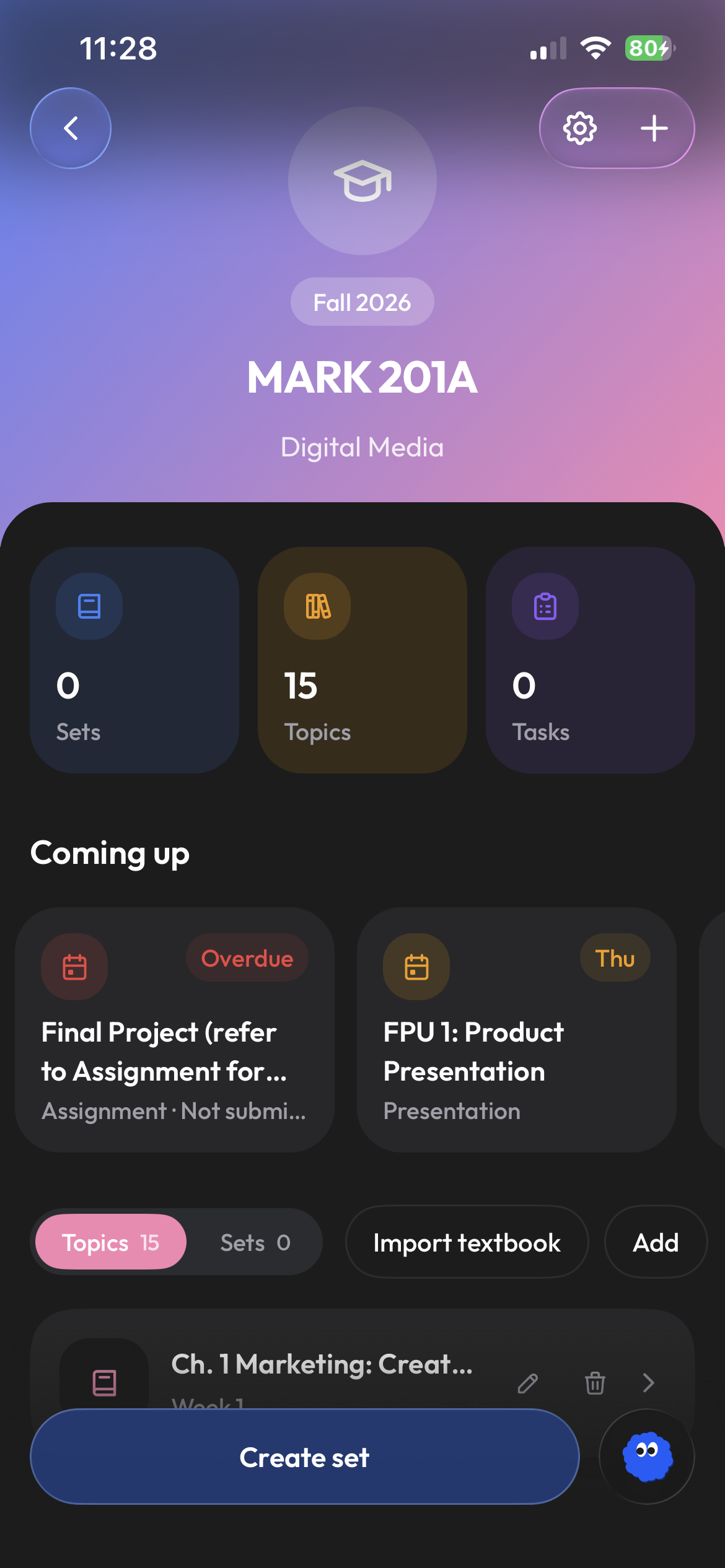
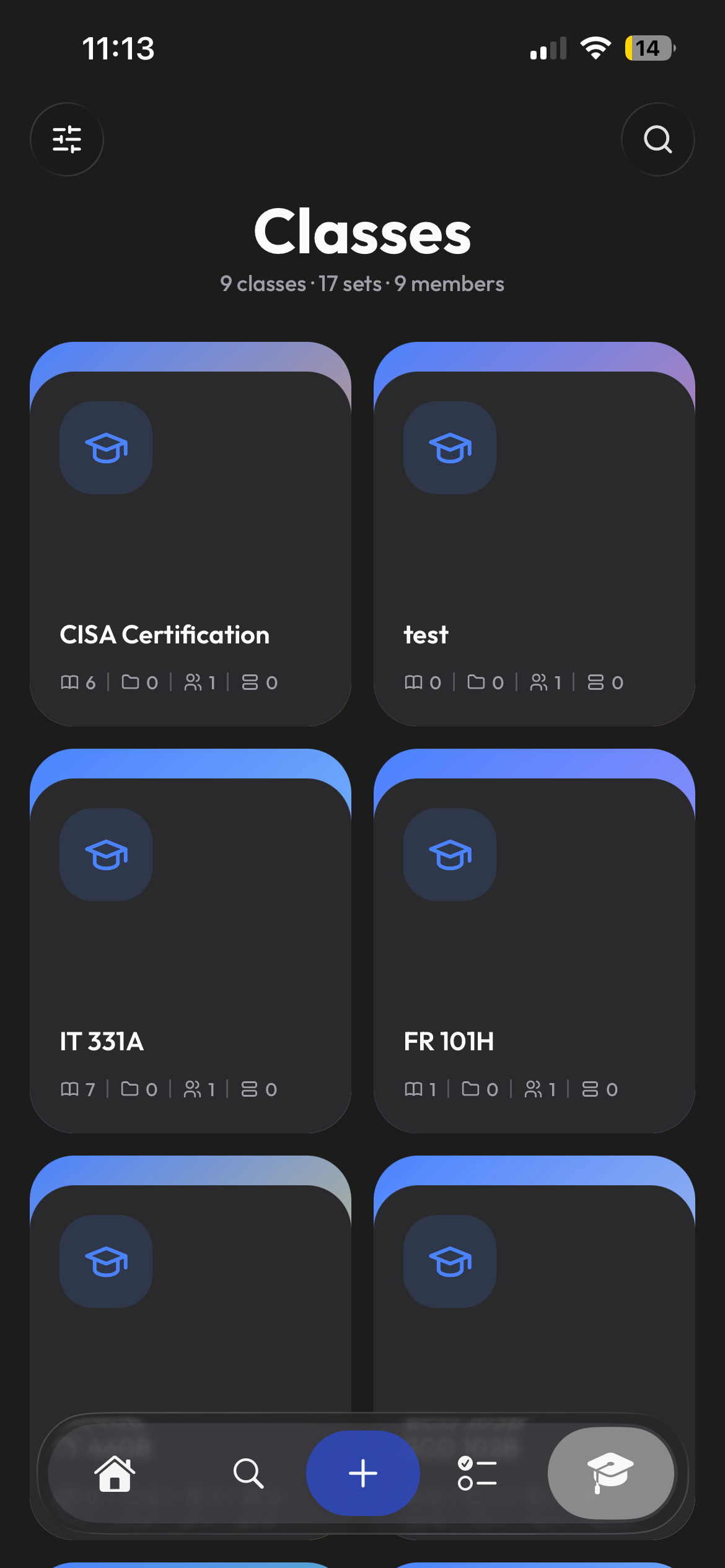
Connect the platform your school uses.
Connect Moodle or Brightspace through your school login. For Canvas, sign in where supported or use a personal access token. Available connection options depend on your school.
- Moodle and Brightspace via your school's sign-in
- Canvas via a personal access token
- Disconnect whenever you want
Files land where you would have put them.
Each file is matched to a topic from the course section it came from, its title and its keywords, so week four slides sit under week four. Quizzes and assignments are never downloaded, only their deadlines are reported so they show on Home.
- Keep files organized by class and topic
- Deadlines from the course calendar on your Home
- Re-file anything with one click
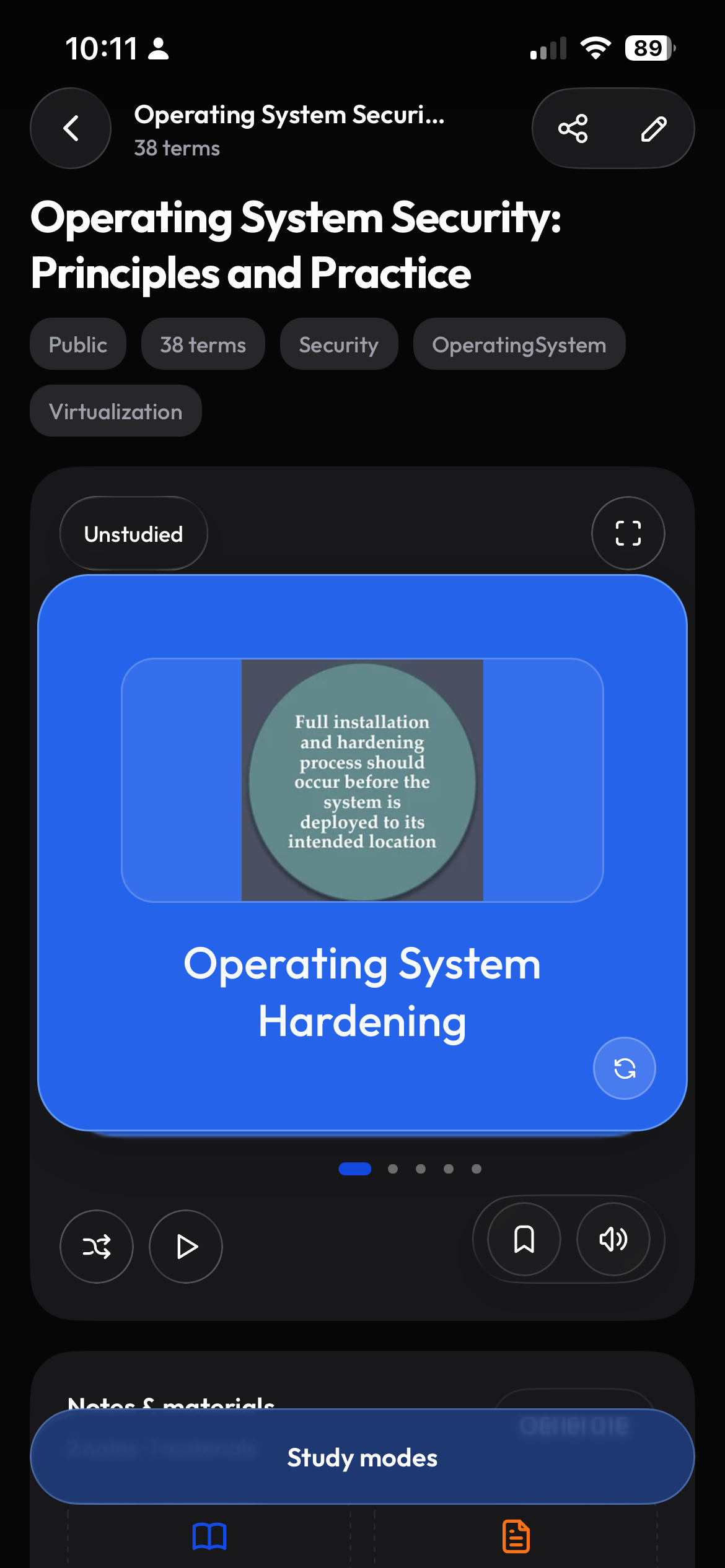
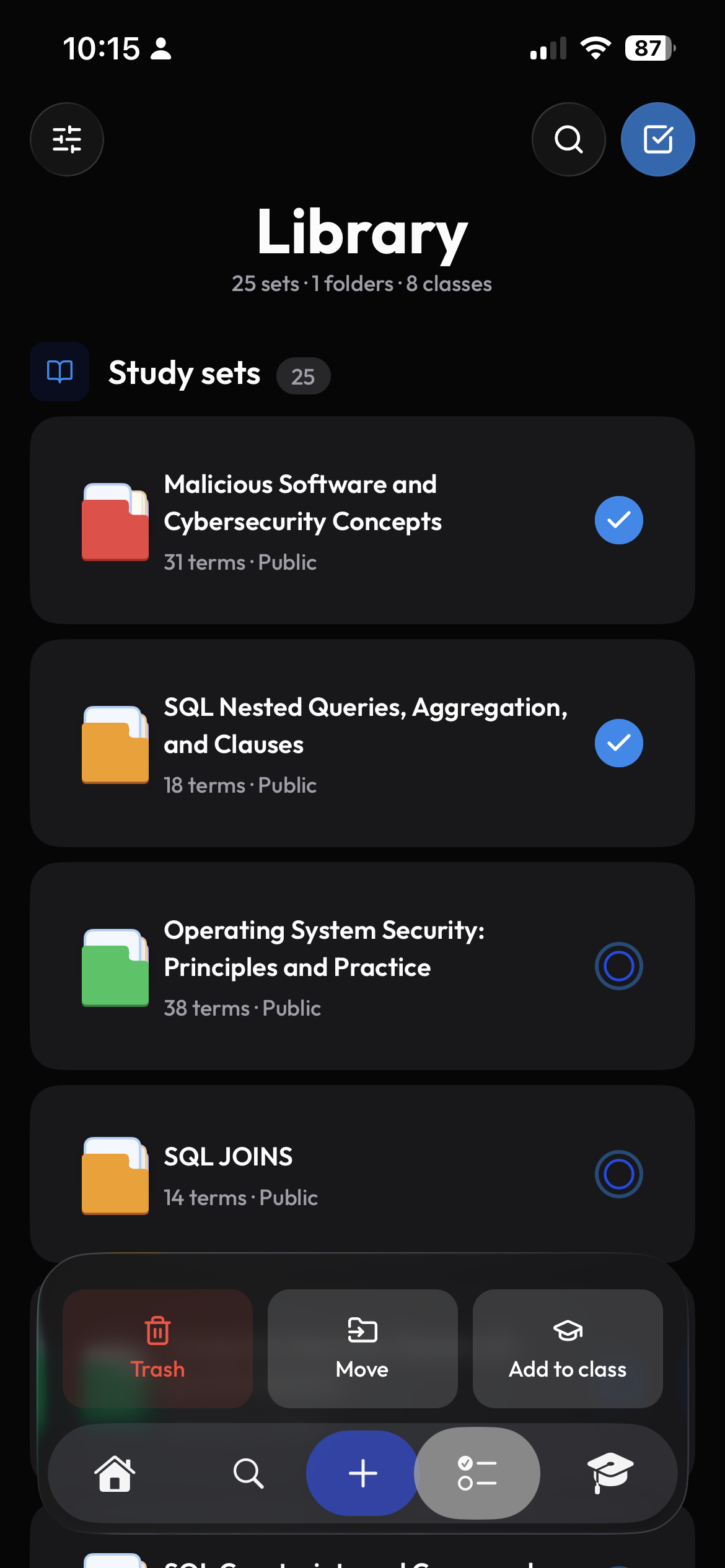
Decide what happens when new files arrive.
Choose whether to import files quietly, get notified about new material, or organize it into study sets by topic. When new files arrive, update your generated cards to include them.
- Add materials only
- Add materials and notify me
- Automatically create or update a study set
Frequently asked questions
Which learning platforms does Clevaly support?
Moodle, Canvas and Brightspace (D2L). Moodle and Canvas connect from the web app or the mobile app; Brightspace connects from the mobile app.
Does Clevaly write anything back to my course site?
No. Sync is read-only. Clevaly never posts, submits or changes anything on Moodle, Canvas or Brightspace.
How often does it sync?
Whenever you visit your course site with the browser extension installed, and once a day otherwise. You can also press Sync on any course.
Can my school see that I connected Clevaly?
A Moodle or Brightspace connection appears in your own account's list of app tokens, the same as the official mobile app. Canvas shows the access token you created. Nothing is shared with instructors.

Stop downloading lecture slides.
Connect your course site and let the material come to you, filed and ready to study.
Sign up for Clevaly