Make a practice test from your notes
Check what you can explain before your college exam. Build a test from your material and review every marked question.
How it works
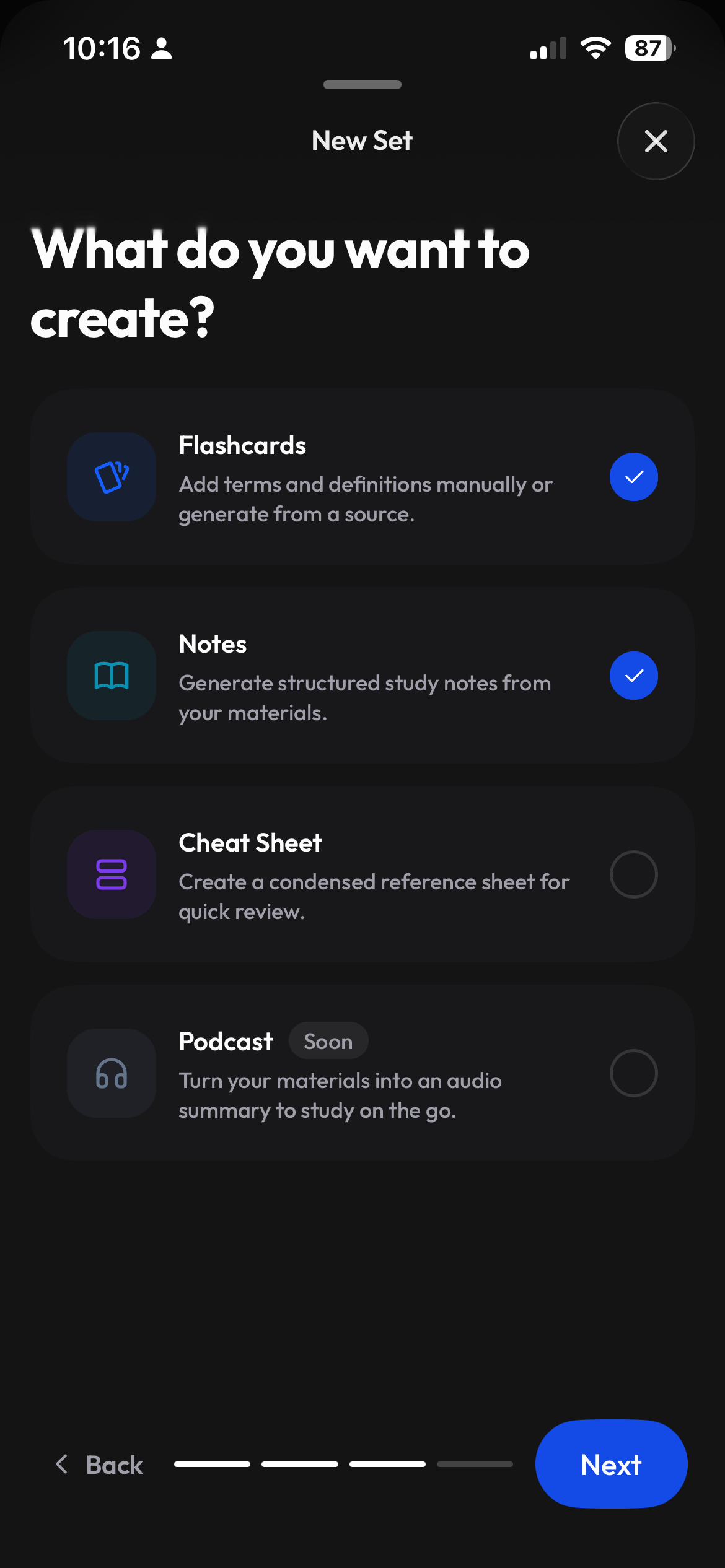
Create a study set from notes, a PDF or slides, then open Test. Clevaly builds a fresh quiz with distractors from your other terms, you pick question types and length, every question is marked and written answers can be AI graded. Ask Cleva for practice questions and they open in Test.
Get started in 3 steps
- 1
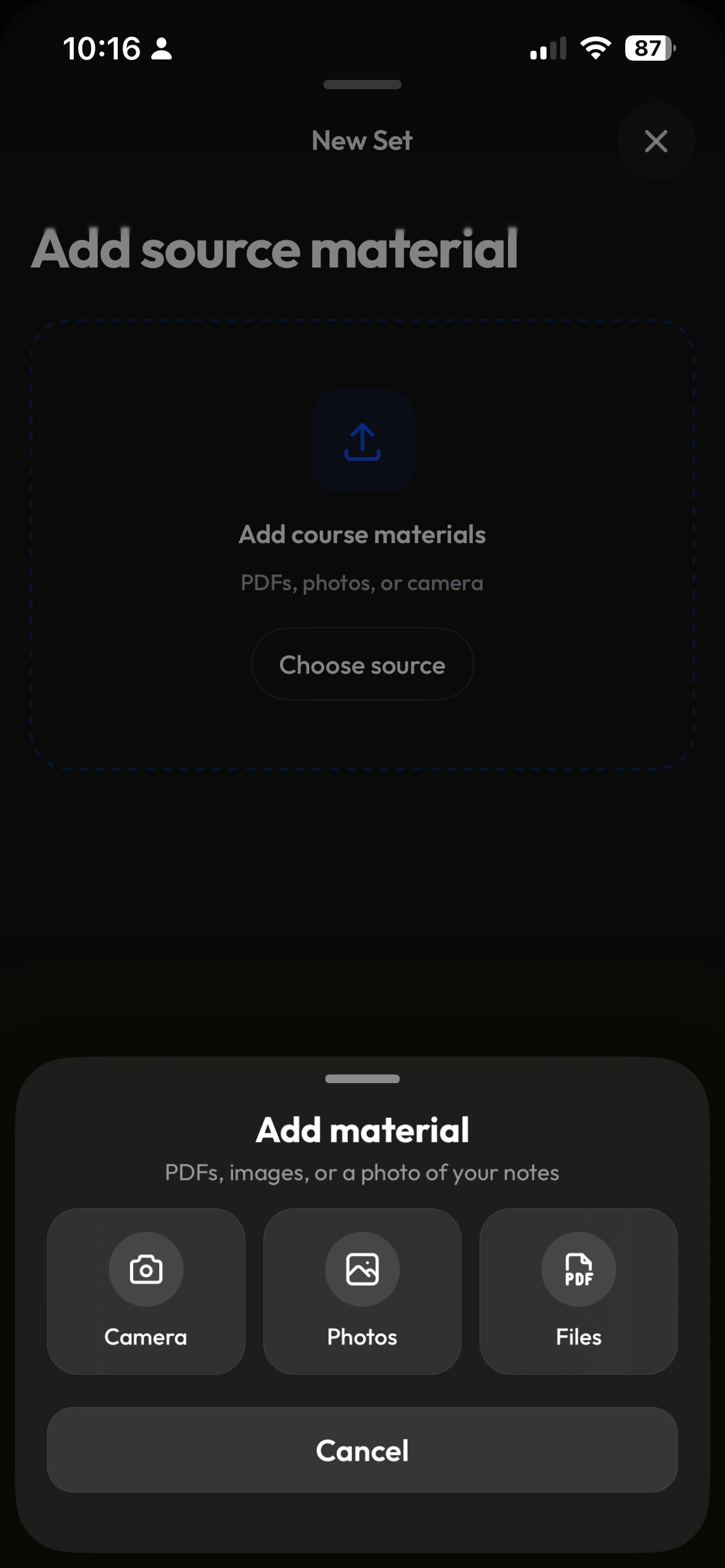
Create a set from your material
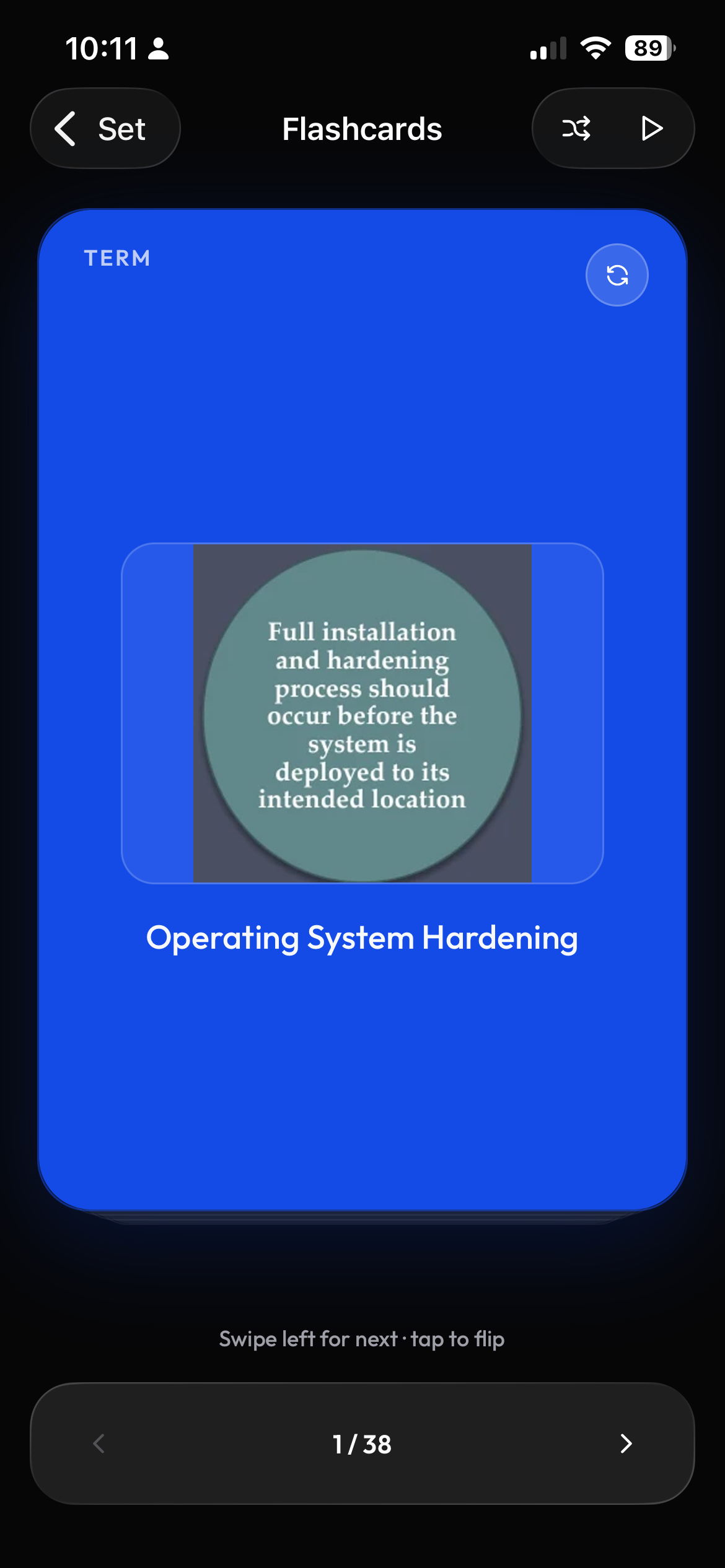
Start with your notes, a PDF or PowerPoint slides. Review the generated terms against the original material.
- 2
Open Test and choose your questions
Pick the question types and test length. Clevaly builds a fresh quiz with distractors from your other terms.
- 3
Read the results question by question
Every question is marked. Review written-answer grading and return to the material you need to explain more clearly.
AI grading for written answers
Written answers can be AI graded, alongside the marking for every question. Use that feedback to identify what to revisit, and check any uncertain marking against your course material. AI grading can make mistakes; it is a study aid rather than a course grade.
Ask Cleva for practice questions
Ask Cleva for practice questions about the class or topic you are studying. The resulting practice questions open in Test so you can answer and review them there.
Review questions in your course files
Use the review questions in a lecture file as a checklist for what to practice. Compare your test results with those questions and revisit the original notes or slides when an explanation is incomplete.
An exam-week plan you can repeat
Work through one topic, make a practice test, review the marked answers, and return to the source material for the gaps. Repeat for the next topic. If you want an outline alongside your questions, build a study guide.
Keep the course material with the class
Read-only sync from Moodle, Canvas and Brightspace brings course files into Clevaly. Start from that material when you make a study set. See course files to flashcards for the sync workflow.
Study the same set in four ways
| Mode | How to use it |
|---|---|
| Flashcards | Review a term, then reveal its definition. |
| Learn | Practice the terms in your set. |
| Test | Check your understanding with a practice test. |
| Match | Pair terms with their definitions. |
Frequently asked questions
Can I make a practice test from my notes?
Yes. Create a study set from your notes, review its terms, then open Test and choose the question types and length.
Can I use a PDF?
Yes. Create a study set from the PDF, review the generated terms, then use Test.
Can I use PowerPoint slides?
Yes. Upload your lecture PowerPoint to create a study set, then open Test.
How are answers graded?
Every question is marked, and written answers can be AI graded. Check uncertain feedback against your course material.
Does taking a test use study actions?
Taking Test on an existing set is free. Generating a test costs 2 study actions.
Are the questions and grades always accurate?
AI can make mistakes or miss details. Check the generated material against your source and edit it before studying.
Can I use this if my school has AI rules?
Follow your school and instructor rules for AI tools and course material. If you are unsure what is allowed for a class or assignment, ask your instructor before using AI generation.
Keep building your study plan

Practice explaining what you know
Make a test from your course material, then review the answers one question at a time.